Guide
Load Information
This guide explains how to open a load, review its details, and access bids in Loadgate
- Log in to your Loadgate account.
- Click Loads in the left-hand navigation menu.
- You will see a list of all active loads.
Tip: Quick Filter by Company or Use the Search bar at the top to quickly find a specific load(s).
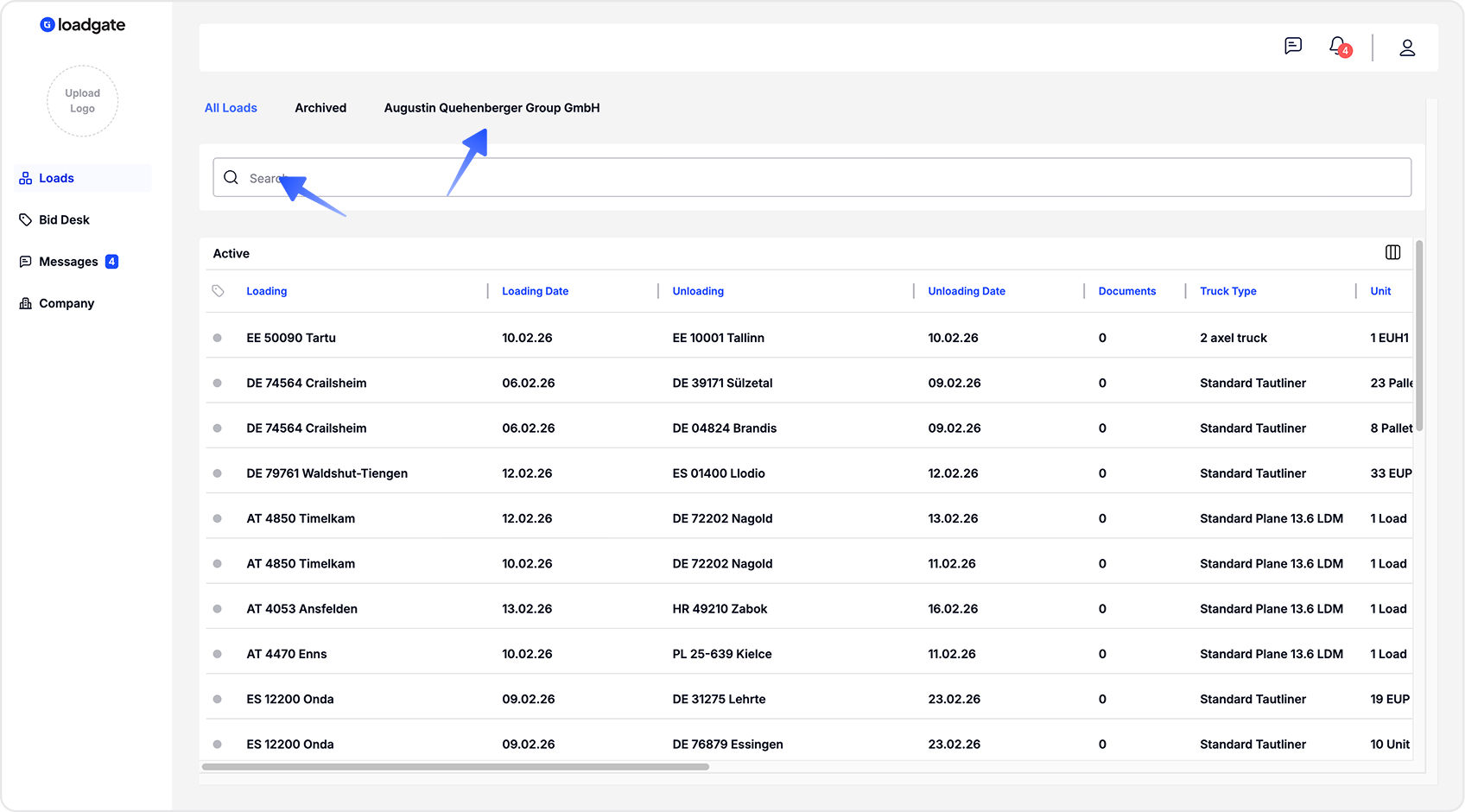
All table headers can be rearranged, and data can be sorted in ascending or descending order.
LoadGate displays single load details in a right-side drawer to provide a focused and clear overview
- Click on any load in the list.
- A Load Info panel will open on the right-hand side of the screen.
- By default, the Info tab is selected.
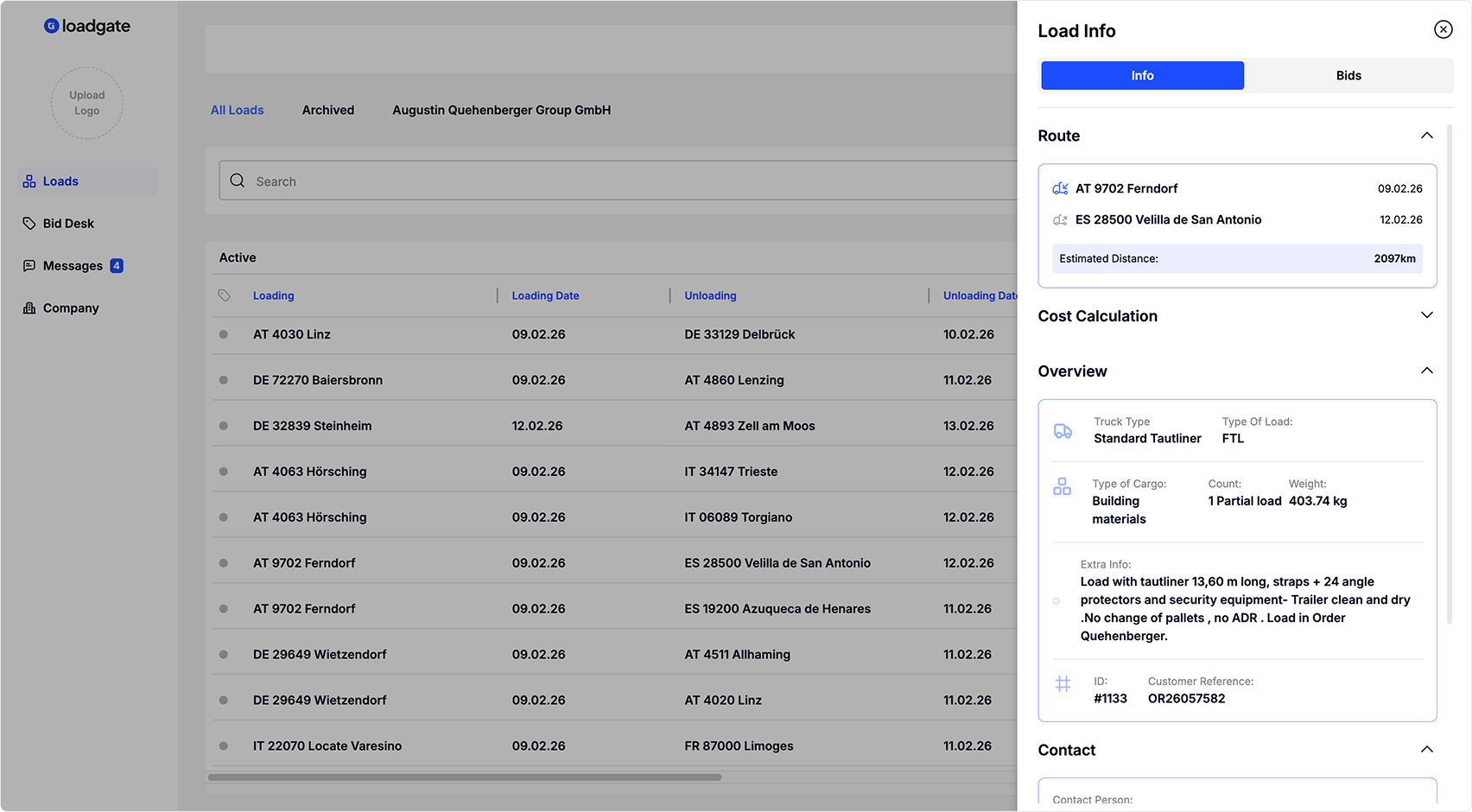
From the same drawer, you can access the Bidding tab
Bids
Bidding is a key part of LoadGate. When a forwarder sends you a load, you can simply review it and submit your bid.
- With the Load Info panel open, click the Bids tab at the top.
- The panel will switch from Info to Bids.
Submit your bid through the bid card.
Bid cards show different information about bids, including the amount, who currently holds the bid, the bid status, the date, and access to chat with Forwarder.
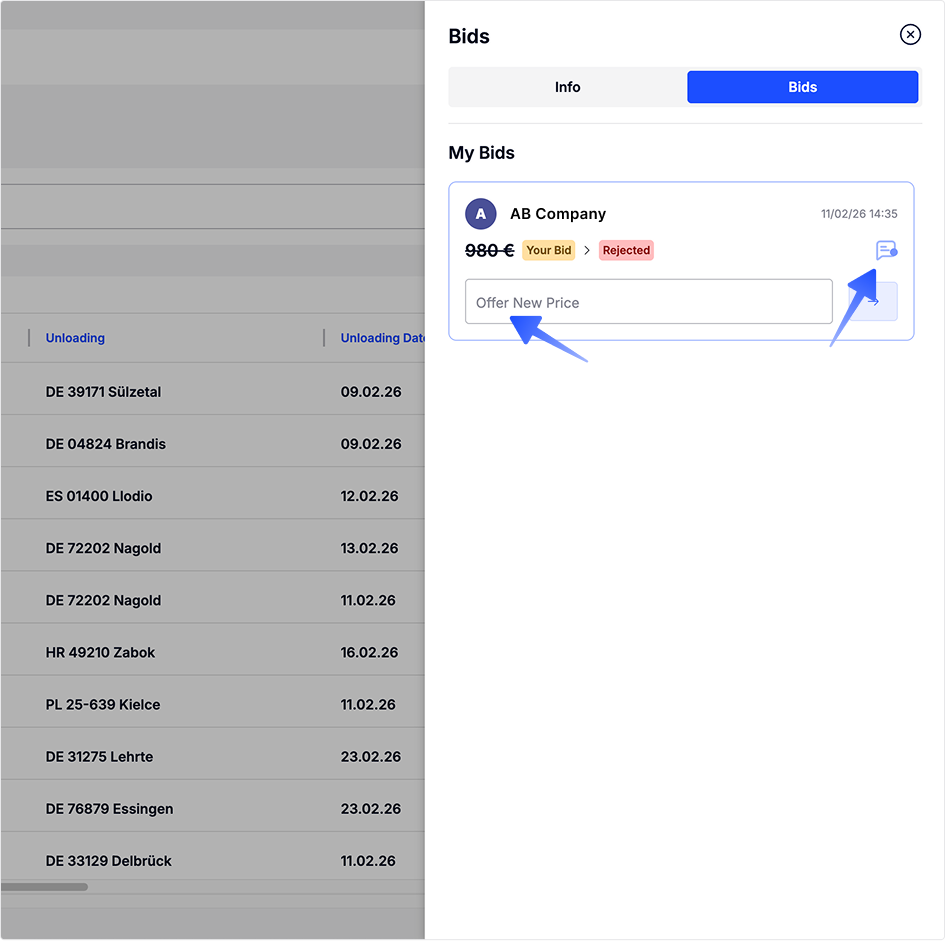
The bid card will also inform you if your bid was:
- rejected and the haulier is expecting a new bid.
- accepted and your offer was selected
- declined, which means another bid was selected and bidding on this load is no longer possible.

If you have any questions about the load, use the Chat button on the bid card to contact the haulier.
Tip: You can also send your bid through chat
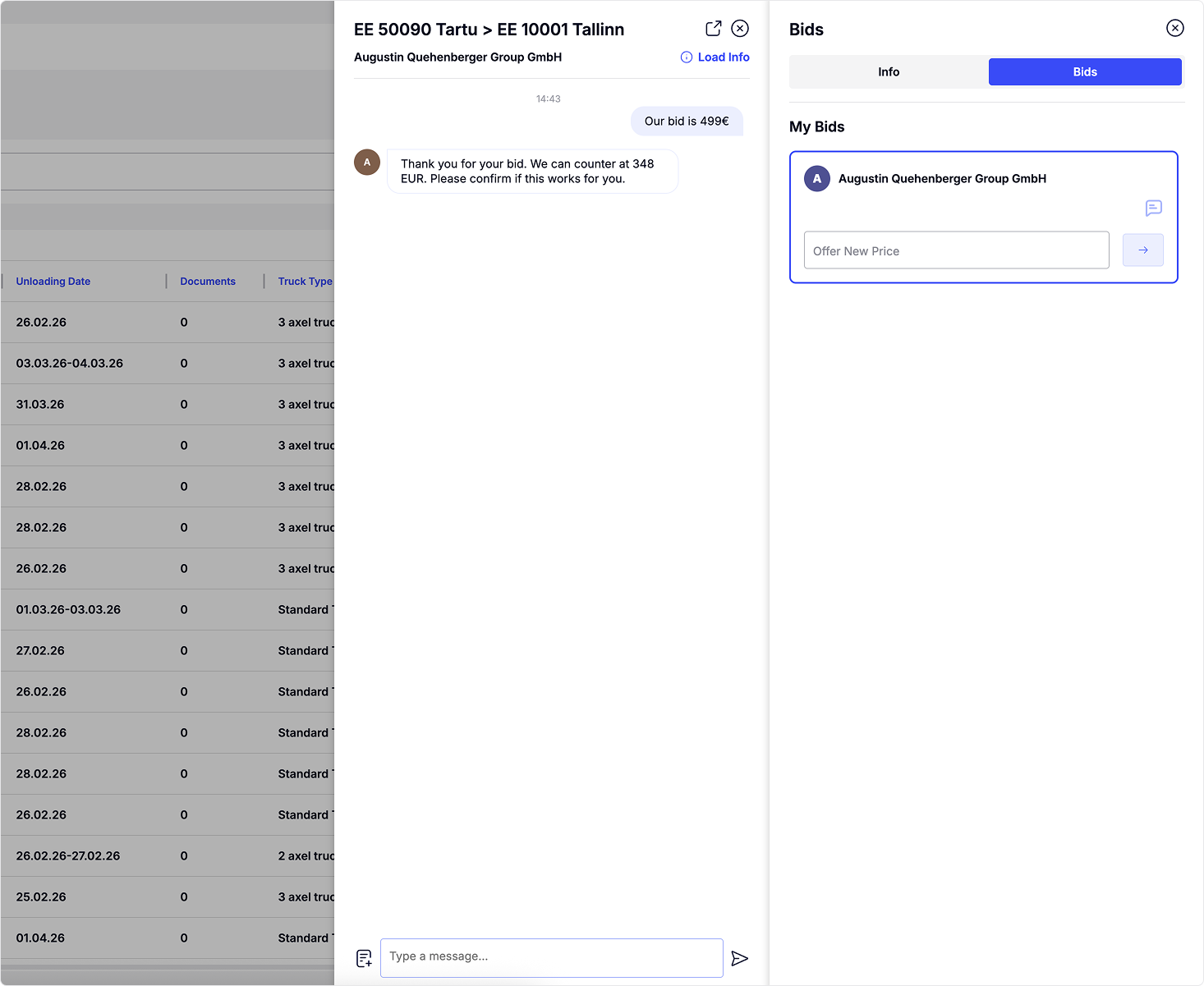
Bidding in chat takes place as a conversation. Please note that when an acceptable offer is sent, you must confirm your bid by writing “I Confirm.” You will also be prompted to do this in the chat. After that you bid will appear on Bid Card
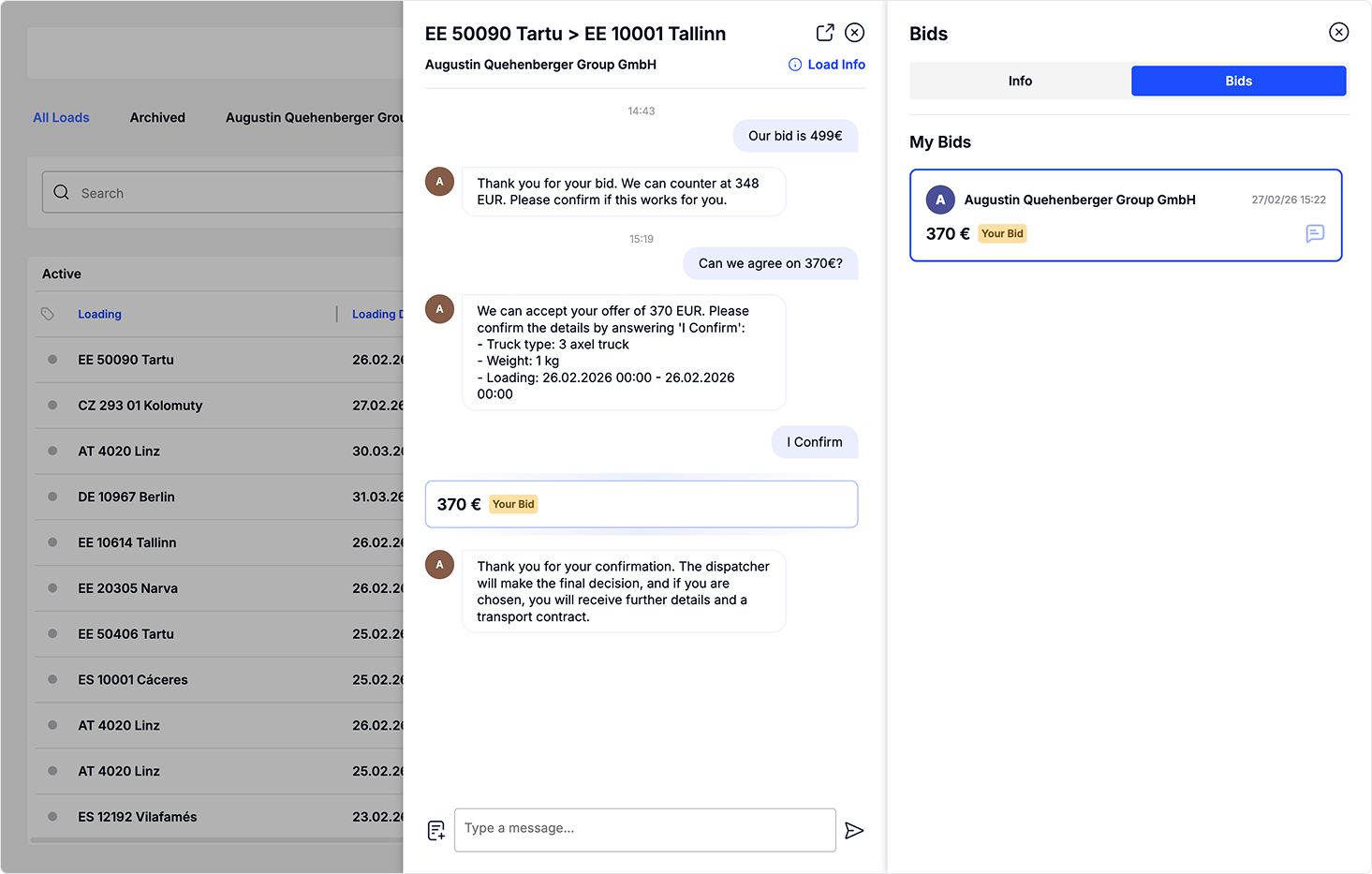
After your bid is accepted, the load will automatically be moved to Archive.
All archived loads are accessible on the Loads page.
You receive notifications three times a day about loads that are available for you to bid on.
You can find your notification preferences under Settings by clicking the user icon in the top right corner.
If you prefer to send your bid through email, our platform supports that as well. Each load in the email includes a “Send Bid” button. By clicking this button, you can submit your bid directly from the email.

Messages
Our messaging system helps you get additional information about loads while also being part of the bidding system.
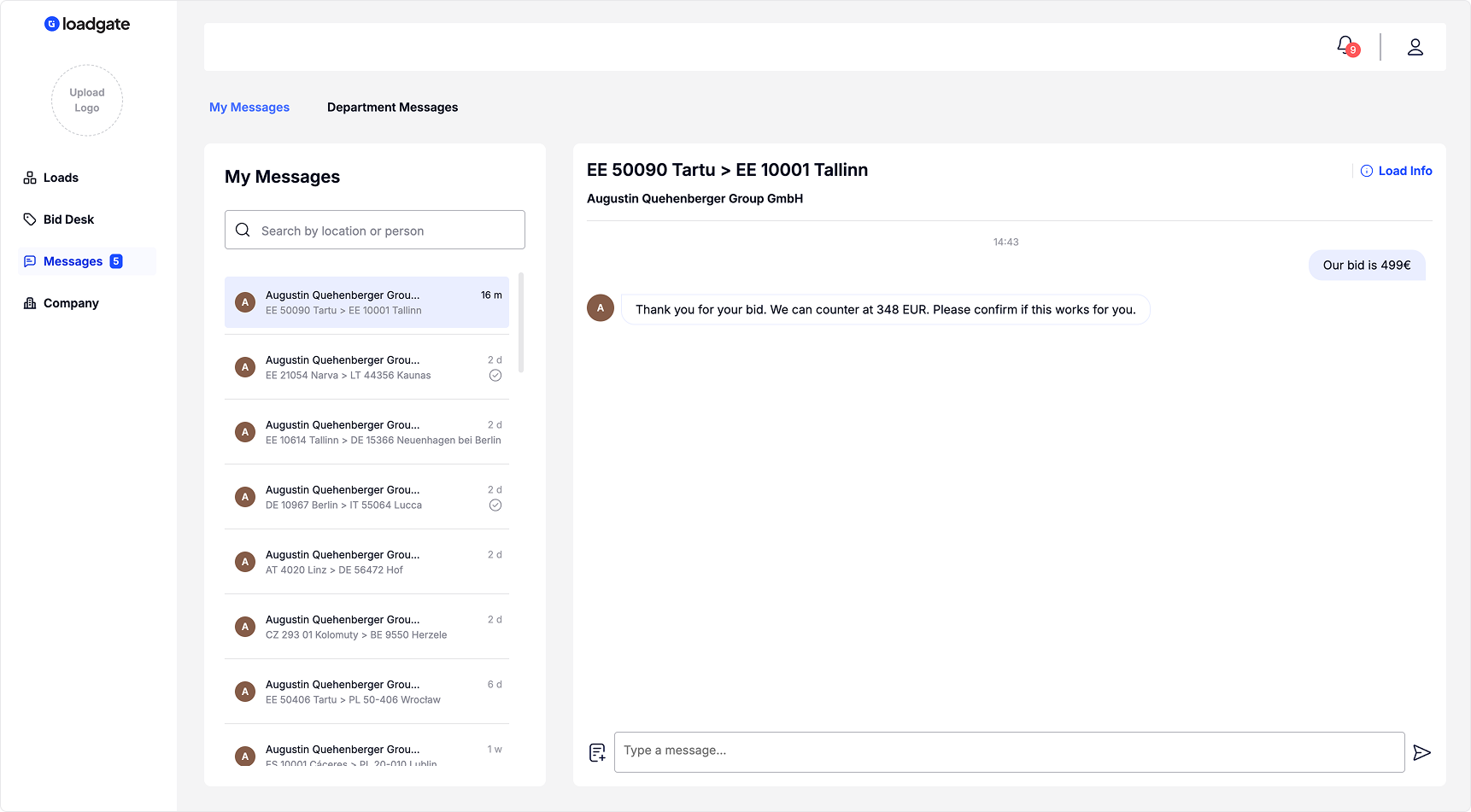
Messages will appear on "My Messages" only when a chat is started through the bid card. The bid card is described in more detail here.
Starting new conversations directly from the Messages page is currently not available.
Messaging system is load-based, meaning each load is a separate conversation. This allows you to have multiple conversations with the same company
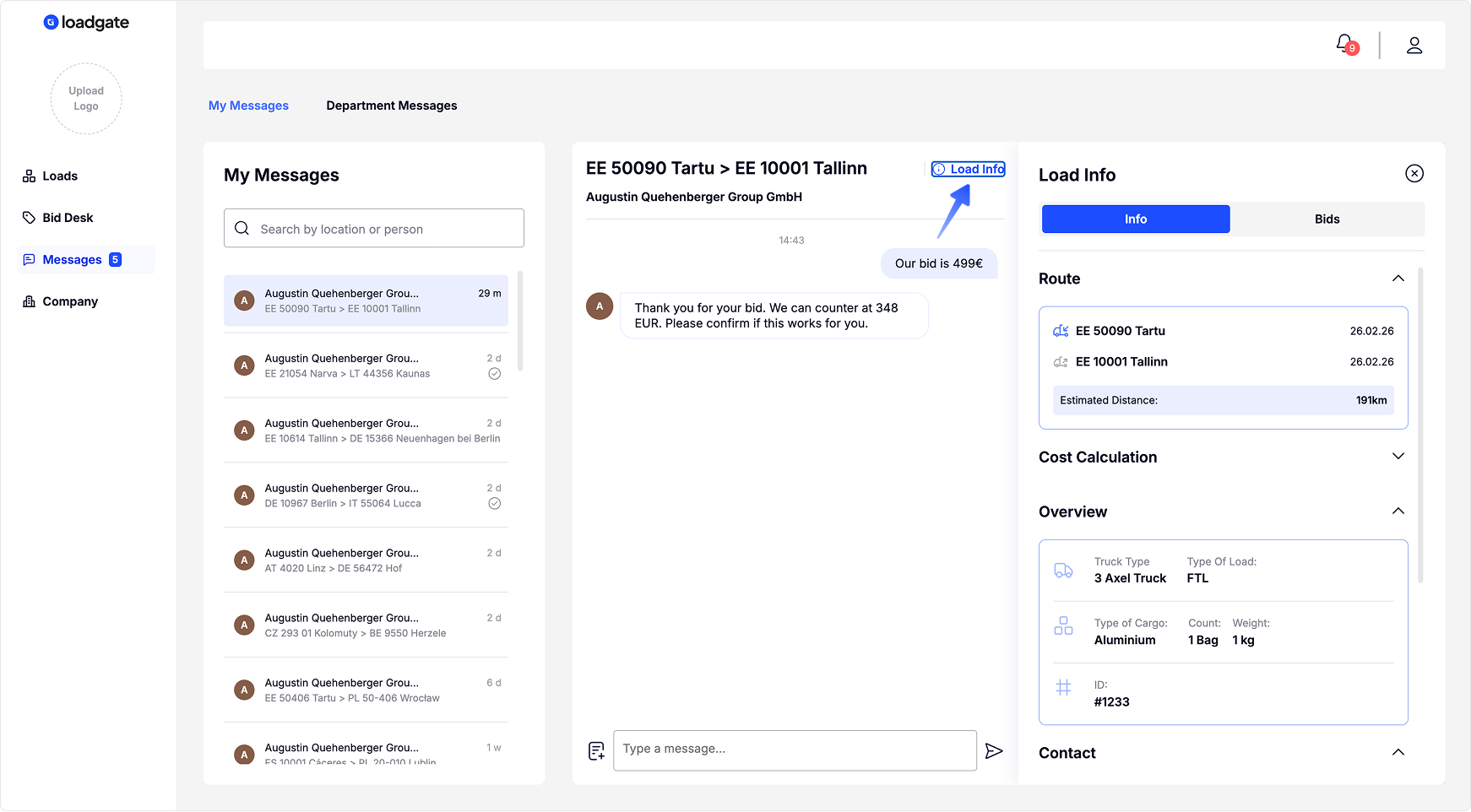
On the Messages page, you can view information about the load you are currently chatting about by clicking the “Load Info” button, without leaving the page.
Tip: You can also send your bid through chat. Read more about Bidingin Chat from here.
After the bid is accepted and the load is moved to the Archive, the conversation remains accessible, but all bidding-related actions are disabled.
Tip: You can access your messages from any page by clicking the chat icon in the top bar.

Settings
The Settings page allows you to manage your account preferences and customize how the platform works for you.
Here, you can update your notification preferences, manage your profile information, and adjust other account-related settings to match your needs.
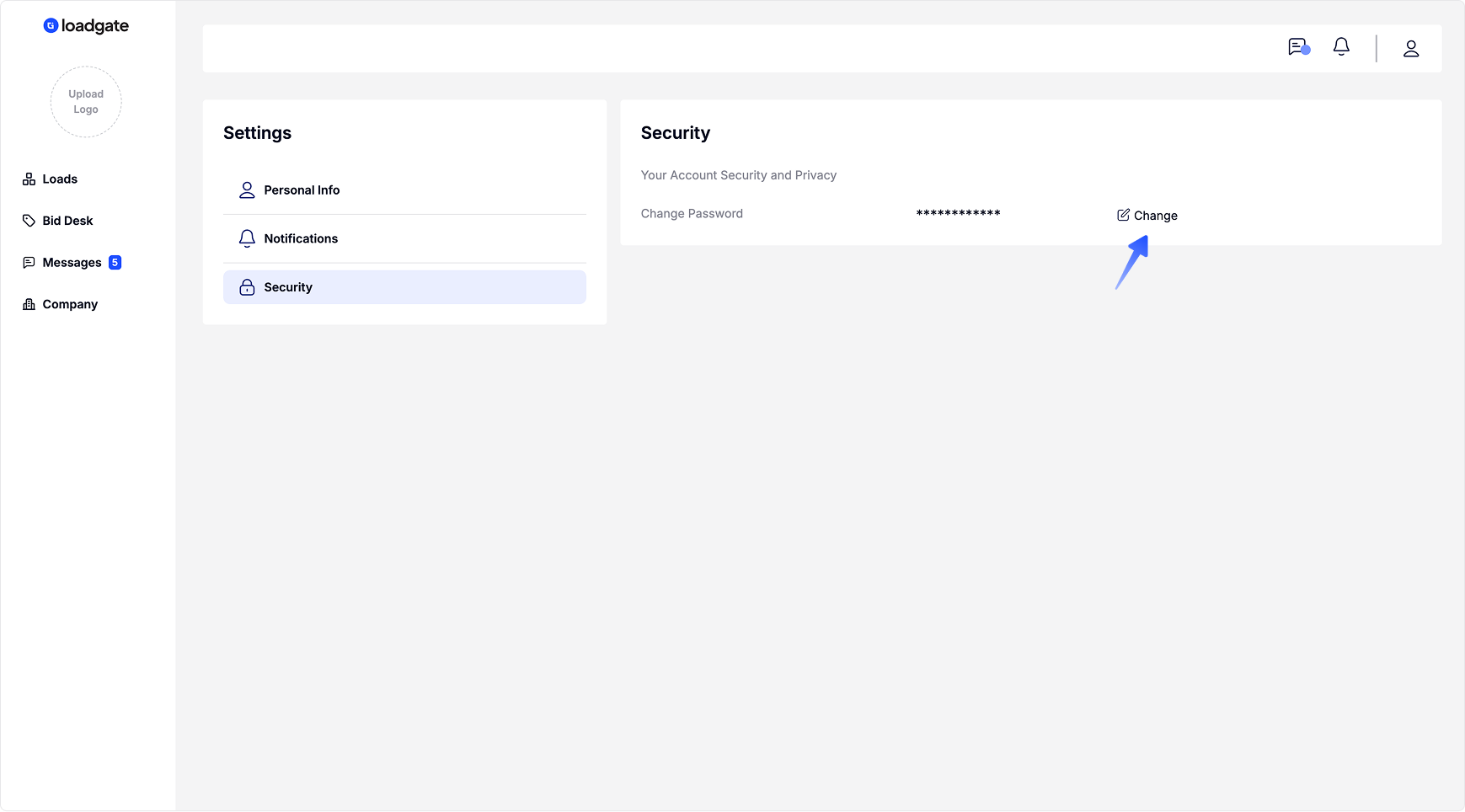
On the Settings page, you can manage your preferences for Personal Information, Notifications, and Security.
You can edit your settings by clicking the Edit icon.