This guide explains how to open a load, review its details, and access bids in Loadgate
1. Log in to your Loadgate account. 2. Click **Loads** in the left-hand navigation menu. 3. You will see a list of all active loads. Tip: Quick Filter by Company or Use the Search bar at the top to quickly find a specific load(s). [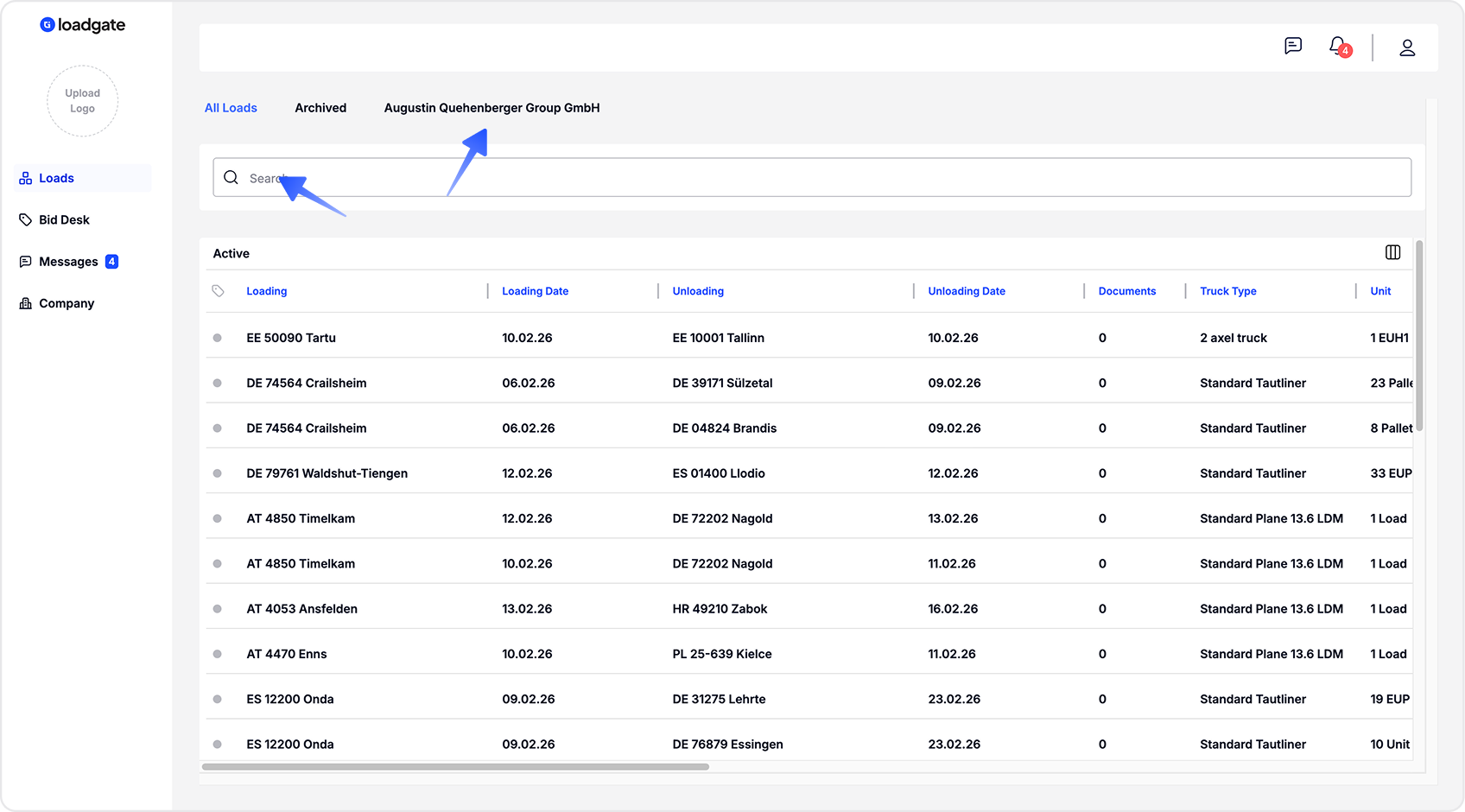](https://docs.loadgate.eu/uploads/images/gallery/2026-02/frame-1688.png) All table headers can be rearranged, and data can be sorted in ascending or descending order. LoadGate displays single load details in a right-side drawer to provide a focused and clear overview 1. Click on any load in the list. 2. A Load Info panel will open on the right-hand side of the screen. 3. By default, the Info tab is selected. [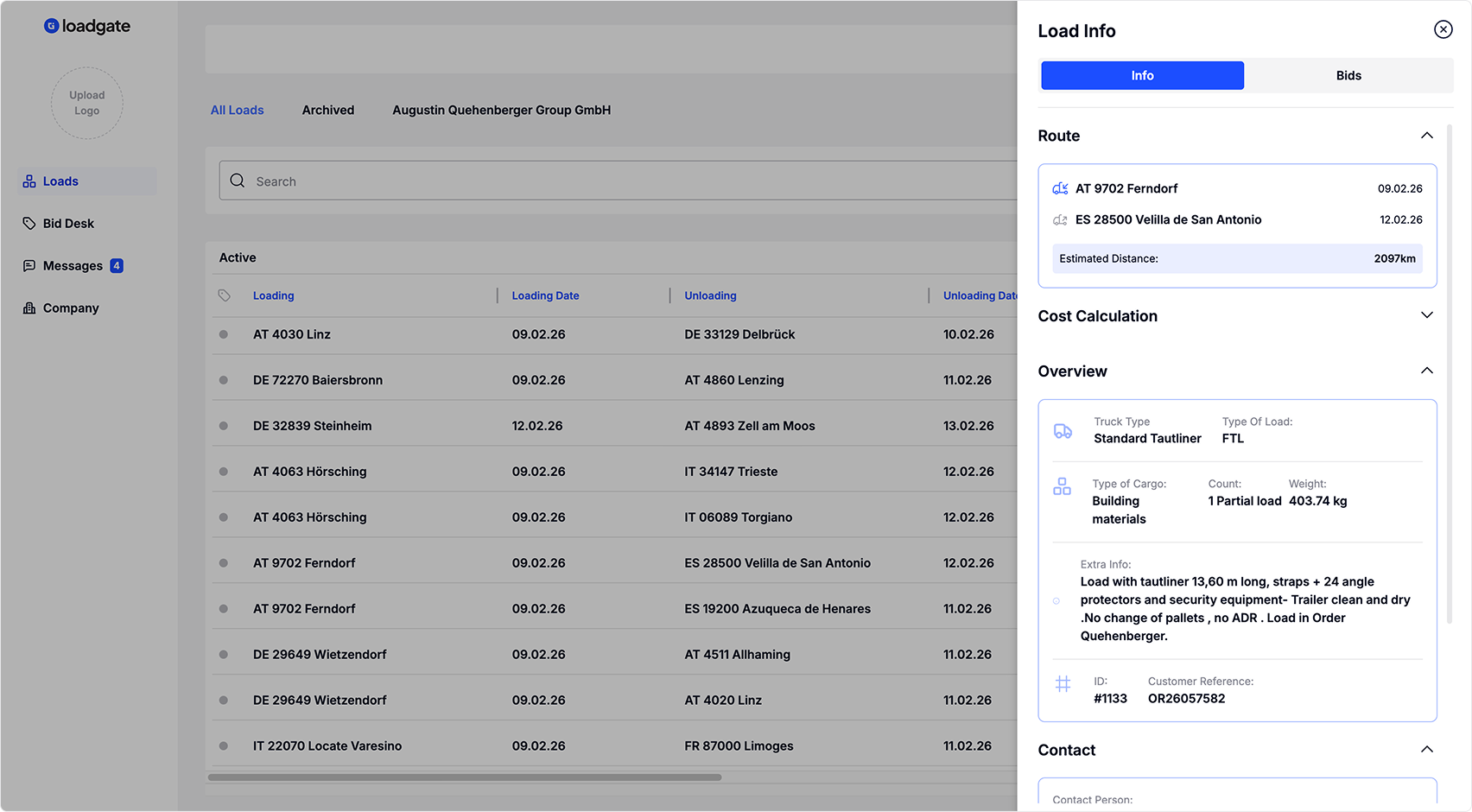](https://docs.loadgate.eu/uploads/images/gallery/2026-02/load-drawer.png) From the same drawer, you can access the Bidding tab