Our messaging system helps you get additional information about loads while also being part of the bidding system.
Messages will appear on **"My Messages"** only when a chat is started through the bid card. The bid card is described in more detail [here](https://docs.loadgate.eu/books/guide/page/bids).Starting new conversations directly from the Messages page is currently not available.
Messaging system is load-based, meaning each load is a separate conversation. This allows you to have multiple conversations with the same company [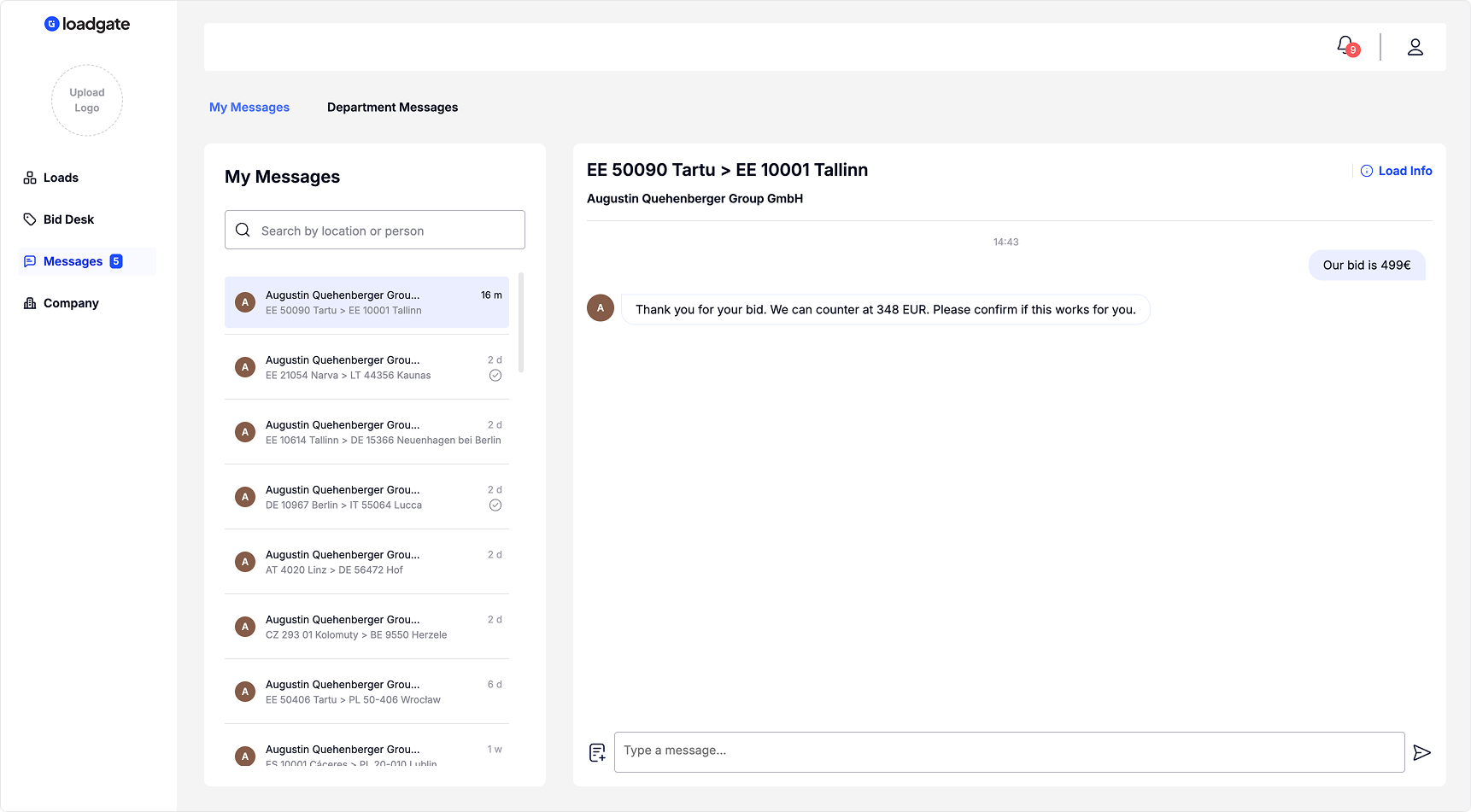](https://docs.loadgate.eu/uploads/images/gallery/2026-02/messages.png) On the Messages page, you can view information about the load you are currently chatting about by clicking the **“Load Info”** button, without leaving the page. [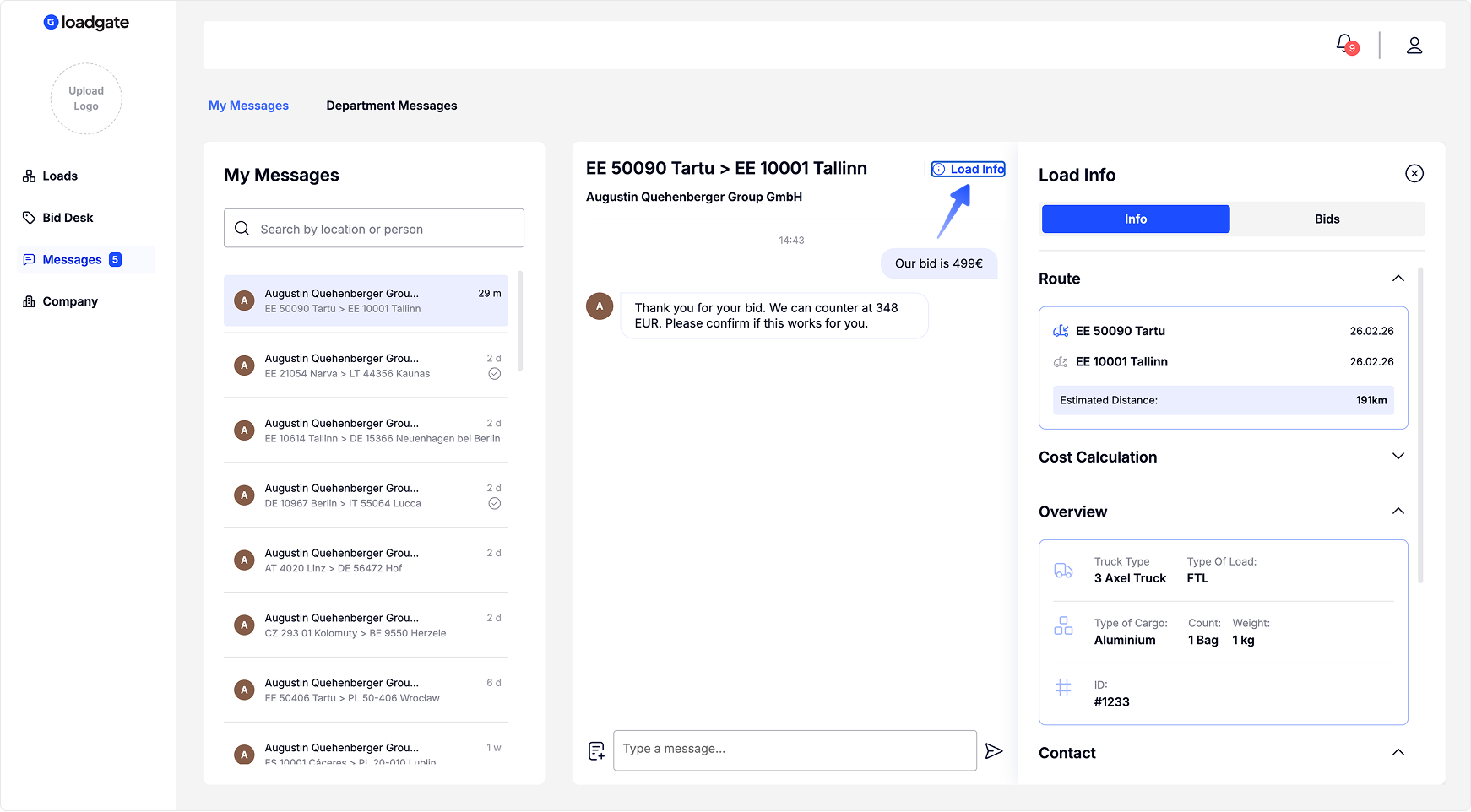](https://docs.loadgate.eu/uploads/images/gallery/2026-02/messages-3.png) Tip: You can also send your bid through chat. Read more about Bidingin Chat from [here](https://docs.loadgate.eu/link/4#bkmrk-bidding-in-chat-take). After the bid is accepted and the load is moved to the Archive, the conversation remains accessible, but all bidding-related actions are disabled. Tip: You can access your messages from any page by clicking the chat icon in the top bar. [](https://docs.loadgate.eu/uploads/images/gallery/2026-02/top-bar-1.png)