
Bids
Bidding is a key part of LoadGate. When a forwarder sends you a load, you can simply review it and submit your bid.
- With the Load Info panel open, click the Bids tab at the top.
- The panel will switch from Info to Bids.
Submit your bid through the bid card.
Bid cards show different information about bids, including the amount, who currently holds the bid, the bid status, the date, and access to chat with Forwarder.
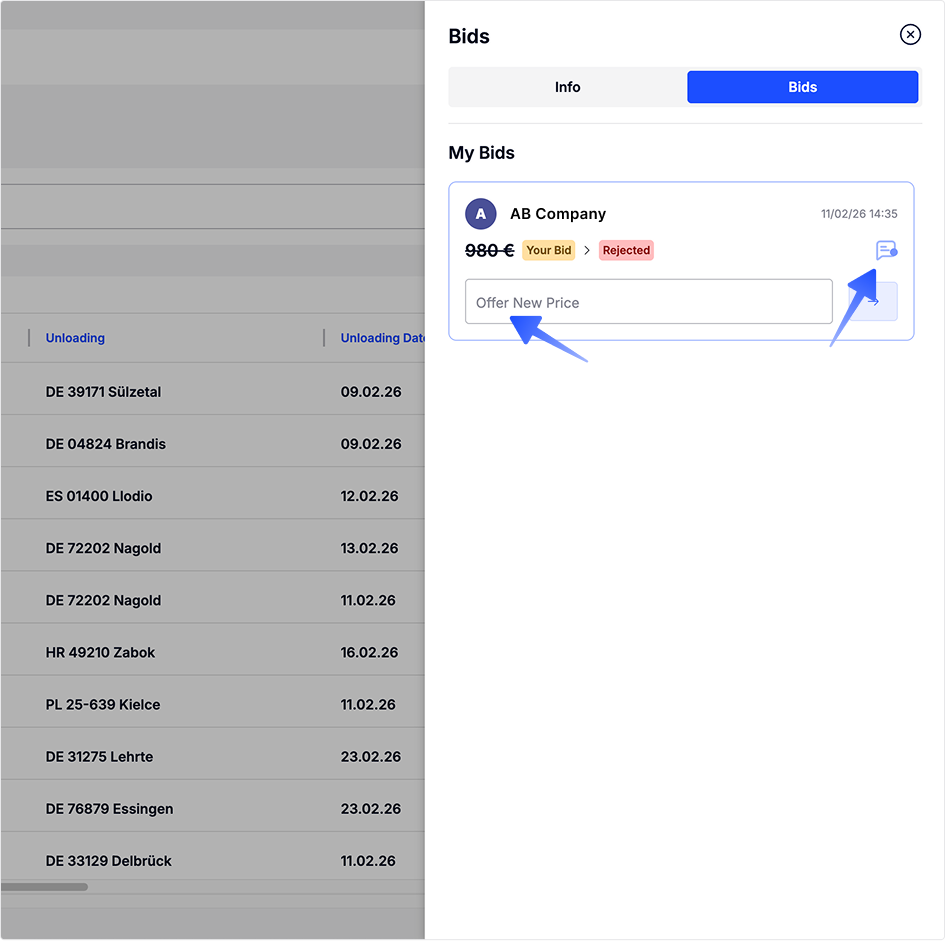
The bid card will also inform you if your bid was:
- rejected and the haulier is expecting a new bid.
- accepted and your offer was selected
- declined, which means another bid was selected and bidding on this load is no longer possible.

If you have any questions about the load, use the Chat button on the bid card to contact the haulier.
Tip: You can also send your bid through chat
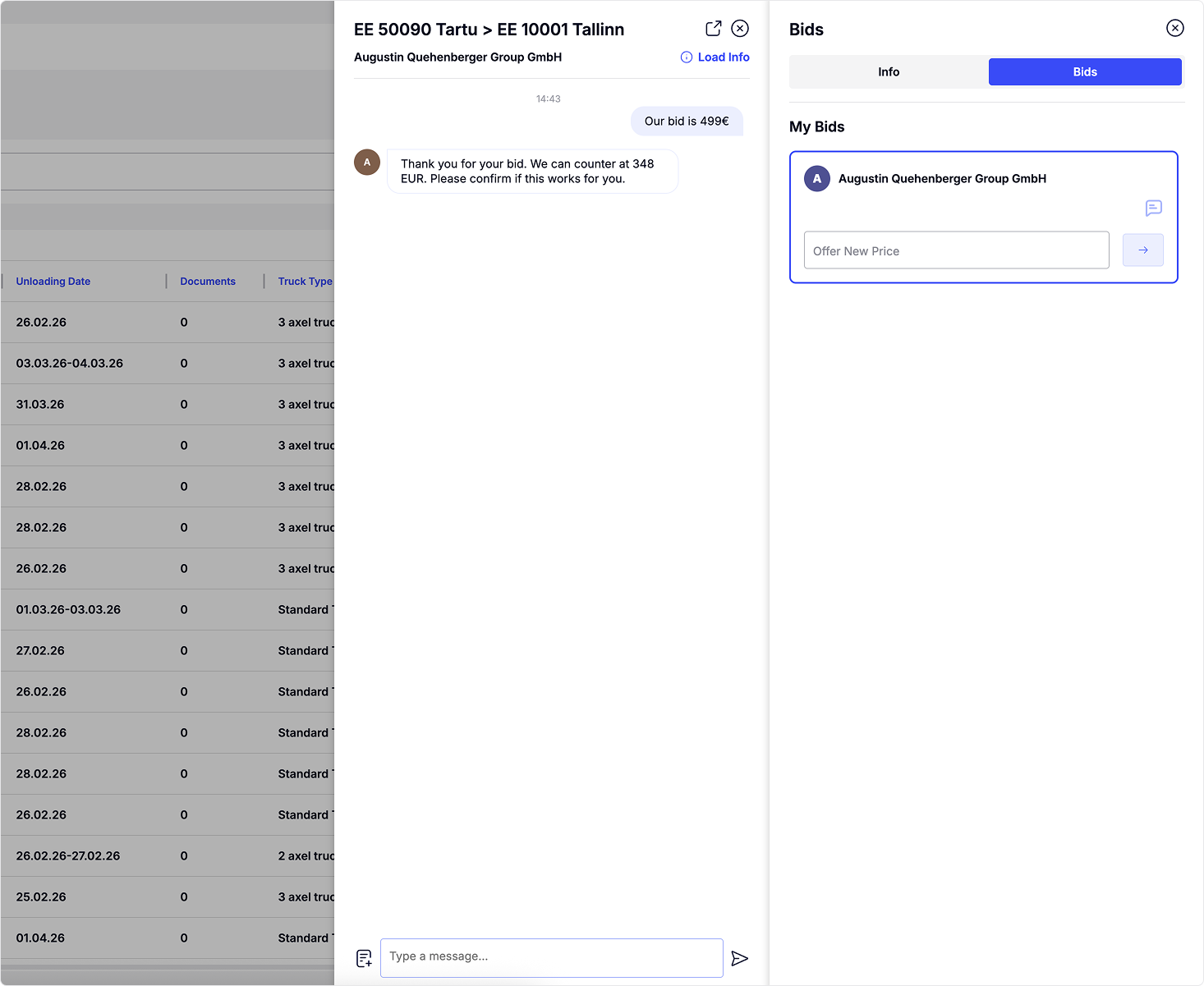
Bidding in chat takes place as a conversation. Please note that when an acceptable offer is sent, you must confirm your bid by writing “I Confirm.” You will also be prompted to do this in the chat. After that you bid will appear on Bid Card
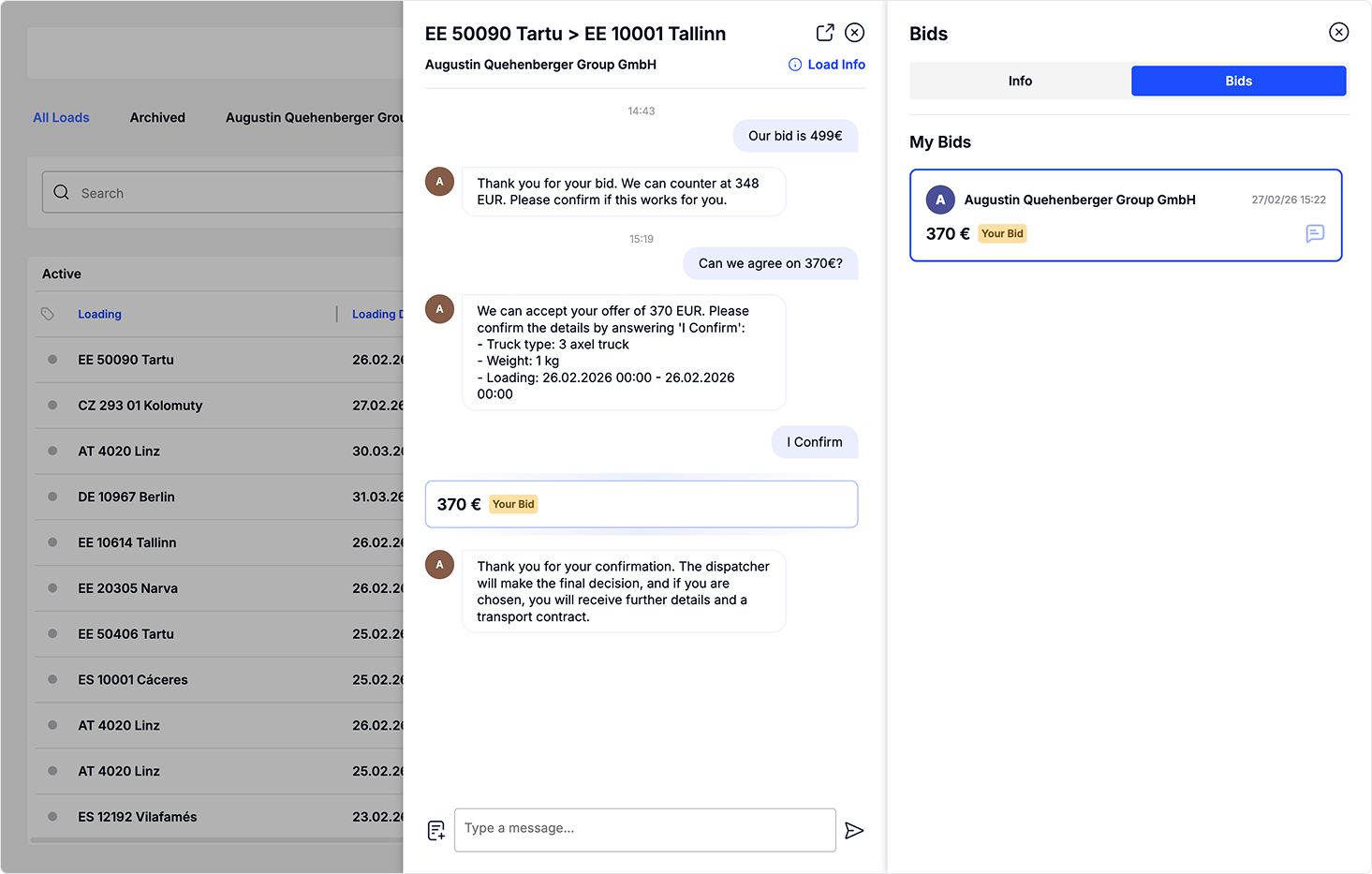
After your bid is accepted, the load will automatically be moved to Archive.
All archived loads are accessible on the Loads page.
You receive notifications three times a day about loads that are available for you to bid on.
You can find your notification preferences under Settings by clicking the user icon in the top right corner.
If you prefer to send your bid through email, our platform supports that as well. Each load in the email includes a “Send Bid” button. By clicking this button, you can submit your bid directly from the email.
